Find your first flip
A flip is buying an item on the Grand Exchange and selling it back a bit higher. This guide takes you from the home page to a pair of offers in game: you'll pick an item with a preset, read its margin, volume and buy limit, check its price history, then place the buy and sell offers.
You need: nothing. The prices table works without an account. Logging in only adds extras (tracking, slots, premium columns).
Open the prices table#
Go to the home page (the house icon at the top left). The big table lists every tradeable item with its live prices; the row above it holds the preset dropdown, the Search box, Reset and Columns.
Pick a preset#
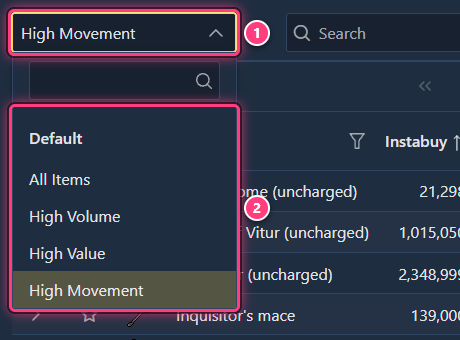
Open the preset dropdown (it shows High Movement on your first visit) and pick a starting point. Each preset is a ready-made set of filters, sort and columns:
| Preset | Shows | Sorted by |
|---|---|---|
| All Items | Every item, no filter, with a Volume column | Margin x Volume |
| High Volume | Items traded at least 100,000 times a day | Margin x Volume |
| High Value | Items worth at least 10M, traded 200+ times a day | Margin x Volume |
| High Movement | Items traded 200+ times a day | Margin x Volume |
| High ROI | Items traded 500+ times a day, with an ROI column | ROI |
| High Margin | Items traded 500+ times a day | Margin |
Every preset except All Items also hides items that weren't both bought and sold in the last hour, so the prices you see are fresh. For a first flip, High Movement or High Volume are good picks: cheap enough items that sell quickly.
Read the columns#
Each row is one item. The ones that matter for a flip:
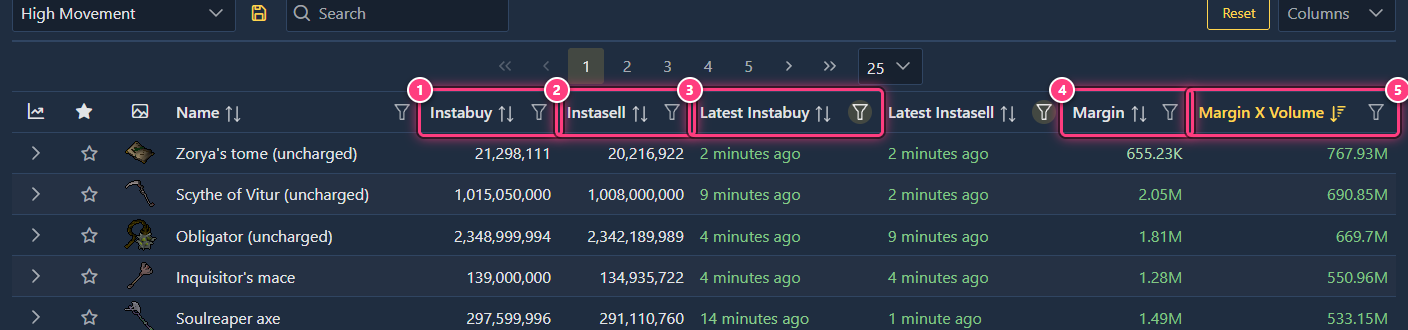
- Margin: instabuy - instasell - tax, per item. Hover a margin to see the subtraction.
- Latest Instabuy / Latest Instasell: green means recent. A margin built on an hours-old price is not real.
- Margin X Volume: margin times the number of items traded per day, a quick "how much money moves" score.
A positive margin on an item that trades a lot is what you're looking for. Beware of huge margins on items traded a few times a day: they often won't fill.
Add the buy limit and volume#
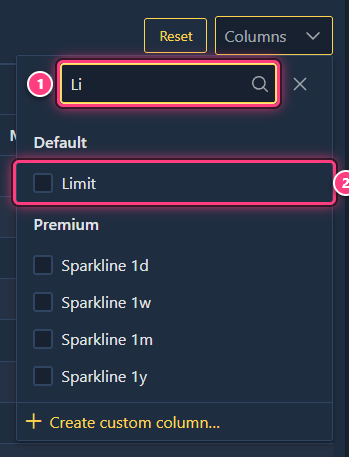
The Grand Exchange only lets you buy a limited quantity of each item every 4 hours. Click Columns (right of
the table header), type Li in its search box and tick Limit. Do the same for Volume and Potential
Profit (margin x the smaller of buy limit and daily volume: the most you can make per limit window).
Click a header to sort by it (click again to reverse). The Unsaved changes tag appears: that's fine, your preset is untouched. To keep this layout, follow build and save a preset.
Look at the price history#
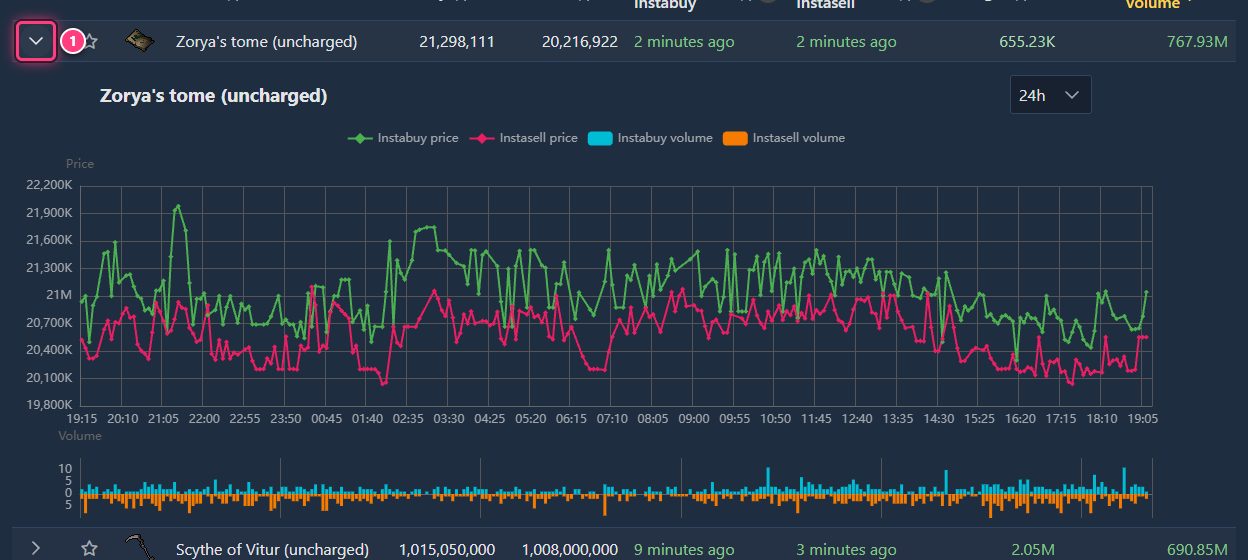
Click the arrow at the start of a row to unfold a price chart of the last 24 hours (switch the period with the dropdown at its top right). Look for a steady margin: instabuy (green) staying above instasell (red) all day, rather than a single spike.
Check the item page#
Click the item name to open its page. The header sums up everything you need before buying:

Below the header: a bigger price chart and a Profit Calculator (see use the profit calculator). Every field is described in item details.
Place your offers in game#
At a Grand Exchange clerk or booth:
- Place a buy offer at or slightly above the instasell price, for at most the buy limit.
- When it fills, collect the items and place a sell offer at or slightly below the instabuy price.
- Prices move: if an offer sits for a long time, compare it with the live prices again and adjust it.
Start small: a few items, to check the margin is real, before buying the full limit.
Troubleshooting#
The table is empty. A filter hides everything, often a search left in the Search box. Click Reset then Sort + Filters.
The margin is negative everywhere. That happens: margins move all day. Try another preset, or sort by Margin and look at items with fresh prices.
My buy offer doesn't fill. Your price is below what sellers accept. Compare it with the current instasell, or pick an item with more volume.
Next steps#
- Build and save a preset with your own filters.
- Items page and table columns: every column explained.
- Item details
- Use the profit calculator