Delete flips
This guide removes data you no longer want: a single purchase in your portfolio, all the purchases of an item, and a RuneScape account synced to Slots. It also covers what can't be deleted from the site, and how to keep a way back.
You need: premium for the portfolio, being logged in for Slots.
What you can delete#
| What | Where | Comes back? |
|---|---|---|
| One portfolio entry (one purchase) | Bin on the entry, in Portfolio > Holdings | Only from an export file |
| All entries of an item | Bin on the item row, in Portfolio > Holdings | Only from an export file |
| A RuneScape account and its slots | x next to the account name on Slots | When the plugin syncs that account again |
| Price alerts and notifications | Track an item and get alerts | No, create them again |
| Your trade history and flip statistics | In the RuneLite plugin, not on the site | See the plugin |
Back up first#
Go to Settings, Settings tab. Under Export, open Portfolio, keep Portfolio Data ticked and click Export (or use Export everything). Keep the downloaded file: see back up and restore your settings.
Delete a single entry#
In Portfolio, open Holdings and click the arrow of the item to see its entries. Click the red bin at the start of the entry, then Yes.
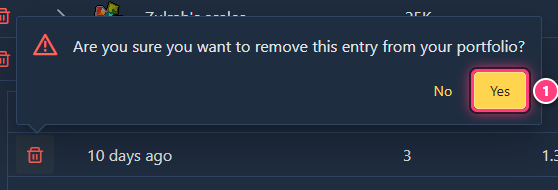
"Removed the selected entry from portfolio." confirms it. Sold only part of a purchase? Lower its Qty instead (see log and edit flips).
Delete every entry of an item#
Click the red bin at the start of the item's row (no need to unfold it), then Yes.
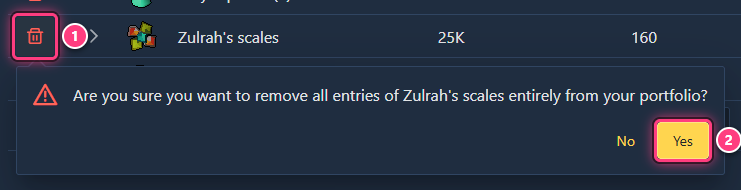
"Removed all entries of ... from portfolio." confirms it.
Delete several items, or everything#
There's no multi-select and no "clear portfolio" button: repeat the previous step for each item row. Twenty rows means twenty clicks, but each item goes in one go.
Delete a RuneScape account from Slots#
On Slots, click the x right of the account name, then Yes. "The account has been successfully deleted!" confirms it.
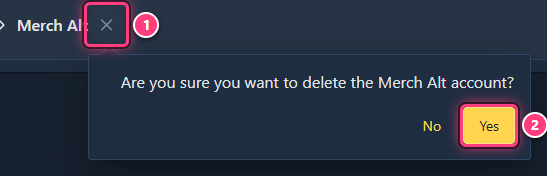
This deletes data stored on the server, unlike the portfolio. The account comes back as soon as you play it again with the plugin logged in: sign out of the plugin, or stop using it on that account, first.
Bring deleted entries back#
If you made an export before deleting: in Settings, Import, click Choose and pick the file, open Portfolio, keep Portfolio Data ticked and click Import. Entries that are missing from your portfolio are added back; the ones you still have aren't duplicated. Details in back up and restore your settings.
Delete my whole account#
The site has no button to delete your Flipping Utilities account. Ask on the Discord.
Next steps#
- Log and edit flips
- Portfolio and Slots: the feature pages.
- Back up and restore your settings