Organise favorites
Favorites are lists of items you want to keep an eye on, each shown as its own prices table on the Favorites page. An item can be in several lists. This guide stars a few items, creates a list, and cleans up.
You need: nothing. Favorites work without an account and are saved in your browser (see back up and restore your settings to move them to another device). On your first visit you have one empty list, Default.
Star an item from the prices table#
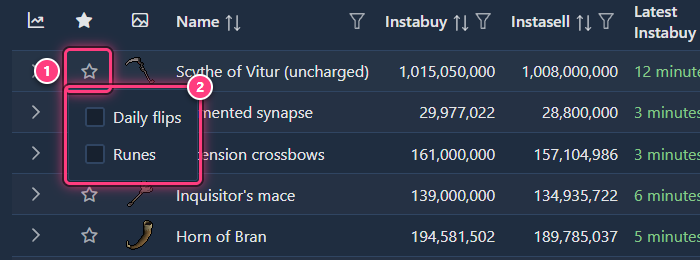
In any prices table (home page, Favorites, shared tables), click the star at the start of a row. A small menu lists your favorite lists: tick the ones the item should be in. The star turns solid once the item is in at least one list.
Or star it from its item page#
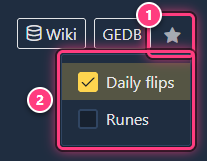
On an item page, the star is at the top right, next to Wiki and GEDB. It opens the same menu.
Create a new list#
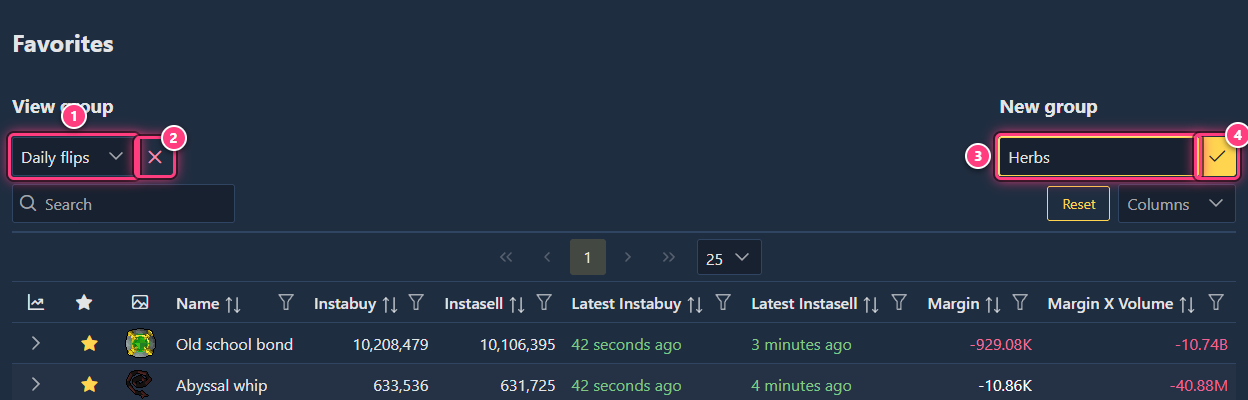
Open Favorites (the star icon in the top bar). Under New group, type a name in New list title and click the check mark (or press Enter). The new, empty list opens straight away. Two lists can't have the same name: "A list with this name already exists" shows under the box.
Then add items to it with the stars, as above. An empty list says "This list is empty. Add items with the ☆ in the prices table."
Switch between lists#
Pick a list in the View group dropdown. Each list is a full prices table: search, sort, filter and choose its Columns as on the home page. Each list remembers its own columns. Unlike the home page, favorites show every item of the list, even ones that haven't traded recently.
Remove an item from a list#
Click the item's star (in any table, or on its item page) and untick the list. On the Favorites page the item disappears from the table right away.
Delete a list#
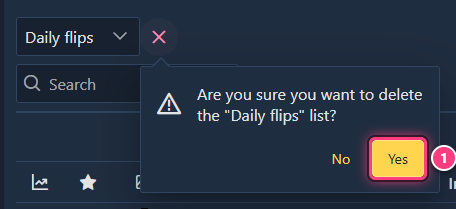
Select the list in View group, click the red x next to it and confirm with Yes. Only the list goes: the items stay in your other lists. If you delete your last list, an empty Default list replaces it.
Troubleshooting#
My favorites are gone. They're stored in this browser only: another browser, a private window or cleared site data starts empty. Restore them from an export, see back up and restore your settings.
I starred an item but it's not in my list. Check which lists are ticked in its star menu: the star is solid as soon as the item is in any list.
Next steps#
- Favorites: the feature page.
- Share a list with a friend.
- Track an item and get alerts for the items you watch closely.