Back up and restore your settings
Most of what you set up on the site is saved in your browser, not in your account: favorites, presets, custom columns, the portfolio, custom recipes. A new browser, a new computer or clearing site data starts from scratch. This guide saves all of it to a file and brings it back.
You need: nothing. The Settings page works without an account.
Two kinds of export#
| Export | Export everything | |
|---|---|---|
| Favorite lists | Yes, you pick which | Yes |
| Custom columns | Yes, you pick which | Yes |
| Portfolio entries and its column layout | Yes, optional | Yes |
| Favorite recipes | Yes, optional | Yes |
| Custom presets and the selected preset | No | Yes |
| Custom recipes | No | Yes |
| Table layouts (items page, favorites), chart overrides, other preferences | No | Yes |
| Your login | No | No |
| On import | Merged, you pick what to bring in | Replaces the matching settings |
Use Export everything for a backup or to move to a new device, and Export to share part of your setup (see share a list) or to merge it into another browser's settings.
Make a backup#
Open Settings#
Click the cog icon at the top right to open Settings, then the Settings tab.
Back up everything#
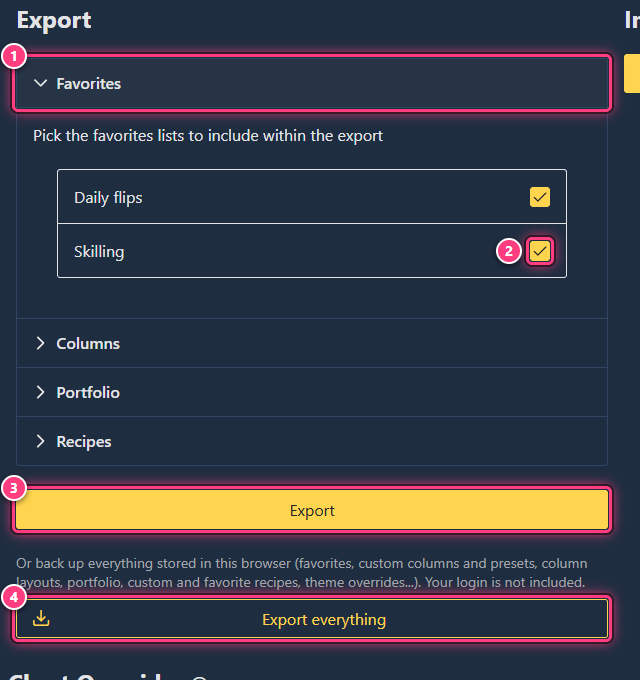
Click Export everything. Your browser downloads osrscloud-full-<date>.json. Keep it somewhere safe; it holds your
portfolio.
Or export a selection#
Open the Favorites, Columns, Portfolio and Recipes sections and untick what you don't want (everything
is ticked to start with), then click Export. The file is osrscloud-<date>.json.
Import an export file#
Choose the file#
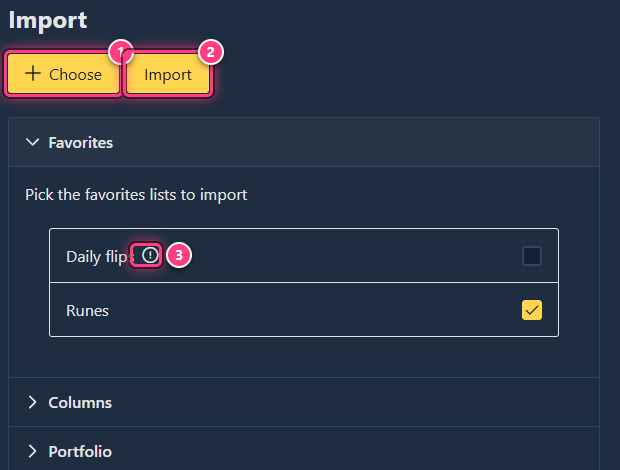
In the Import column, click Choose and pick a file made with Export. The site reads it at once and shows what it contains, next to an Import button.
Pick what to bring in#
Open each section and tick what to import. The rules:
- Favorites and Columns: items you don't have yet are ticked. One with the same name as yours is flagged with a warning icon and unticked; tick it to replace yours.
- Portfolio: Portfolio Data adds the entries you don't already have (nothing is duplicated or removed); Columns and Group Columns replace your portfolio column layout.
- Recipes: Favorite Recipes replaces your list of favorite recipes.
Import#
Click Import. "The file has been successfully imported!" confirms it.
Restore a full backup#
Choose the file#
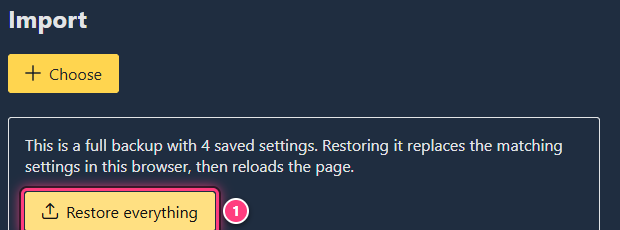
In Import, click Choose and pick a file made with Export everything. A box tells you how many saved settings it holds.
Restore everything#
Click Restore everything. The page reloads with the backup's favorites, presets, columns, portfolio and recipes.
Move to a new device#
- On the old browser: Export everything.
- Send the file to the new device.
- On the new browser: Choose the file, Restore everything.
- Log in again with the Account icon: logins are never in the file (see accounts and sign-in).
Troubleshooting#
"Couldn't upload your file!" The file isn't a site export, or was edited by hand: the message lists what's wrong. Export it again.
My presets or custom recipes didn't come back. They're only in Export everything files, not in Export ones.
Custom columns imported but don't show. They need premium: log in with a premium account, then tick them in Columns.
Next steps#
- Settings: the feature page.
- Share a list
- Delete flips