Build and save a preset
A preset is a saved view of the home page table: its filters, sort order, columns and rows per page. The site comes with six (High Movement, High Volume...); this guide builds your own, here a "Big margins" view showing items with a margin of at least 50K, sorted by potential profit.
You need: nothing, presets work without an account. They're saved in your browser: see back up and restore your settings to keep them safe or move them to another device.
Start from a preset#
On the home page, pick the closest preset in the dropdown. All Items is a blank slate (no filters); the others already hide slow-moving items. Your preset will be a copy: the built-in ones never change.
Filter a column#
Click the funnel icon in a column header, here Margin. Choose a condition (Greater than or equal to for
numbers), type a value, and click Apply. Numbers accept the usual shortcuts: 50k, 1.5m, 2b.
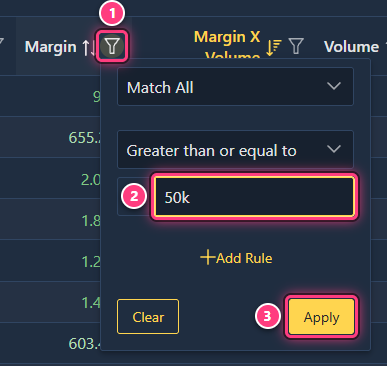
The funnel of a filtered column is highlighted. Repeat on other columns: for example Volume at least 100, so
items that barely trade don't show up. The time columns (Latest Instabuy, Latest Instasell) filter on age,
for example "after 1 Hours ago".
Sort the table#
Click a column header to sort by it, click again to reverse the order. Hold Ctrl (Cmd on a Mac) while clicking another header to add a second sort. The arrow icon shows the current direction.
Choose and arrange the columns#
Click Columns to tick the columns to show or hide (type in its search box to find one quickly), and drag a header left or right to move a column. Premium members also get the premium columns (trends, sparklines, 5m to 24h price and volume columns) and their own custom columns.
Notice the "Unsaved changes" tag#
As soon as the table differs from the selected preset, an Unsaved changes tag shows next to the dropdown and the save button gets a border.

Save it#
Click the save icon (tooltip Save preset). A Preset name box appears: type a name and click Save (or press Enter).

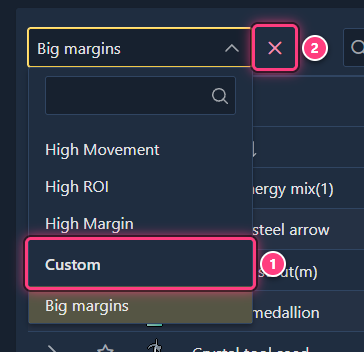
The preset is now selected, and listed under Custom at the bottom of the dropdown. It comes back every time you open the site in this browser.
Update it later#
Select your preset, change what you want, click Save preset: the name box already holds the preset's name and the button reads Update. Click it to overwrite the preset.
Rename it#
There's no rename button. Select the preset, click Save preset, type the new name and click Save: that creates a copy under the new name. Then select the old one and delete it (next step).
Delete it#
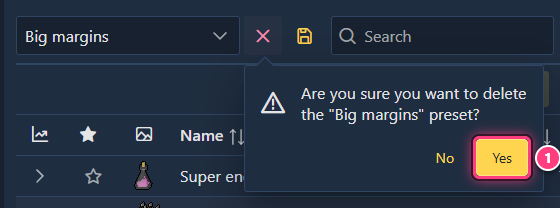
Select the preset, click the red x next to the dropdown (tooltip Delete preset "...") and confirm with Yes. The table goes back to High Movement.
Start over without losing your preset#
Reset (right of the toolbar) goes back to the site's default sort (Margin x Volume) and the default "traded in the last hour" filter. It asks what to reset:
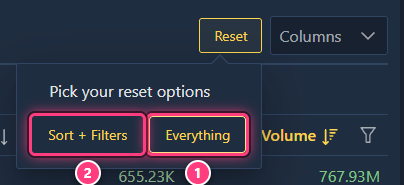
Reset only changes the table you're looking at: your saved presets are untouched until you save over them. To get a preset back as it was saved, select another preset and then select it again.
Troubleshooting#
My preset disappeared. Presets live in this browser only. Another browser, a private window or cleared site data won't have them. Use Export everything in Settings to carry them over.
A premium or custom column vanished from my preset. Those columns only show for premium members who are logged in. They come back once you log in again with premium.
The table is empty after loading my preset. Your filters may be too strict for the current prices. Loosen one filter, or check the Search box is empty.
Next steps#
- Create a custom column to use in your presets (premium).
- Share a list: send a filtered table as a link.
- Items page, table columns