Slots in the plugin
The plugin follows your 8 Grand Exchange slots in the slots tab of the sidebar and on the GE interface itself. To see them outside the game, link the plugin and use the site's Slots page.
Slots tab#
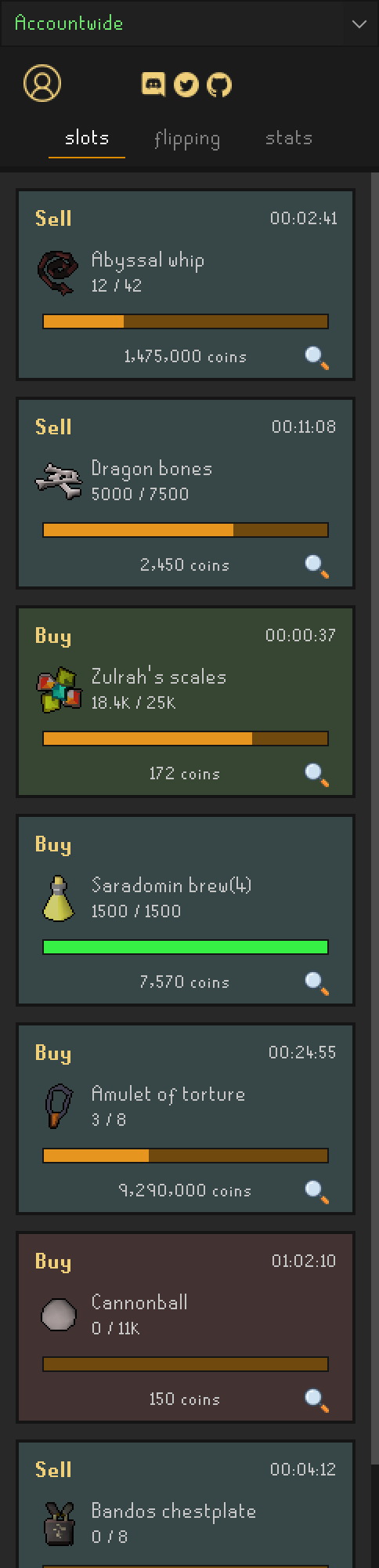
Each active offer gets a card with:
- Buy or Sell, and how long since the offer last traded;
- the item, and how many have filled out of the offer's quantity;
- a progress bar: orange while running, green once complete, red when cancelled;
- the offer's price, and a magnifier that opens the quick look when hovered.
The card's background compares your price with the wiki's latest prices:
| Background | Meaning |
|---|---|
| Green | Better than the wiki: a buy above both wiki prices, or a sell below both. It should fill quickly. |
| Gray-teal | In range: the price is between the wiki's insta sell and insta buy prices. |
| Red | Out of range: a buy below both wiki prices, or a sell above both. It may not fill until the price moves. |
In the screenshot, the Zulrah's scales buy at 172 is above the wiki's 171 insta buy price (green), and the cannonball buy at 150 is below the wiki's 154 insta sell price (red).
When no offer is active, the tab says No currently active slots.
Quick look#
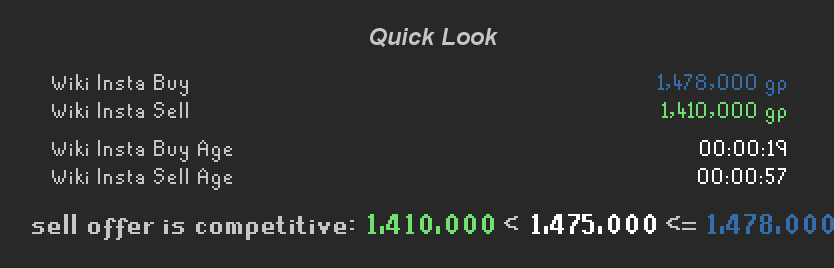
Hover the magnifier of a slot card to compare the offer with the wiki prices, how old those prices are, and what the offer needs to be competitive.
In-game slot timers#
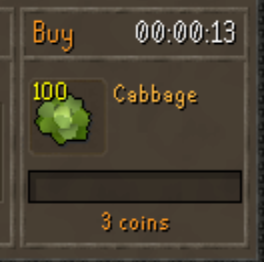
The plugin replaces the Buy / Sell title of each GE slot with a timer:
- while the offer runs, the time since it last traded (or since it was placed);
- once it completes or is cancelled, how long the whole offer took, in green.
The timer turns red when an offer hasn't traded for longer than the Set trade stagnation time (15 minutes by default), a hint to change your price. Offers that filled while you were logged out show no timer, because the plugin doesn't know when they traded.
Turn the timers off, change the stagnation time or the colors of the Buy/Sell text in Settings.
In-game slot borders and quick look#
With slot enhancement on (it is by default), each GE slot gets:
- a colored border with the same meaning as the slots tab: green better than the wiki, blue in range, red out of range. Turn the borders off with toggle colored slot borders in Settings.
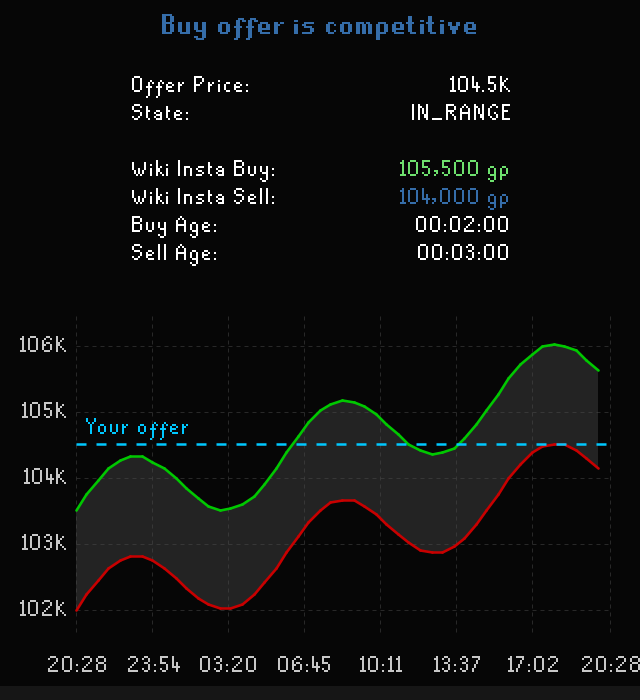
- a magnifier. Hover it for the quick look tooltip, with a price chart of the item over the Time range set in Settings. If the chart can't load, click the magnifier to retry. Quick lookup in Settings turns the magnifier off.
The Slot enhancement switch itself is in the status window of the Flipping Utilities login.