Setting up offers
When you open the GE's Set up offer screen, or click one of your existing offers, the flipping tab shows only that item's card, with the offer editor below it. The plugin then helps you enter the price and quantity.
Offer editor hotkeys#
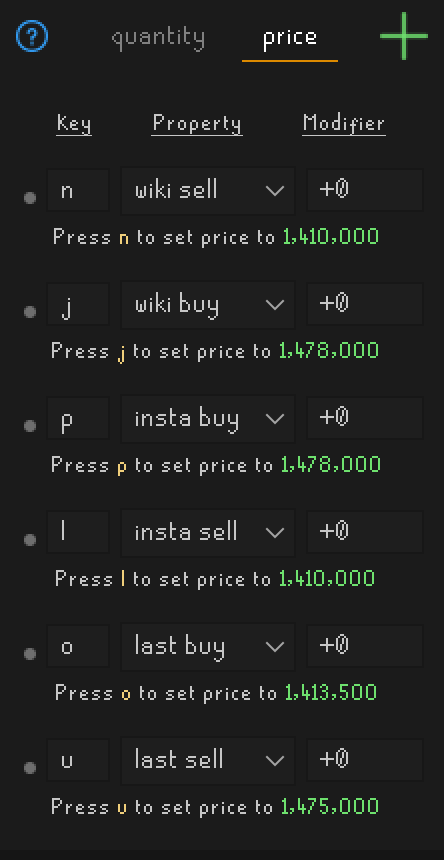
The offer editor has a list of options. Each option is a key, a property and a modifier. When the GE asks for a price or a quantity, press an option's key and the plugin types the result into the prompt; press Enter to confirm as usual.
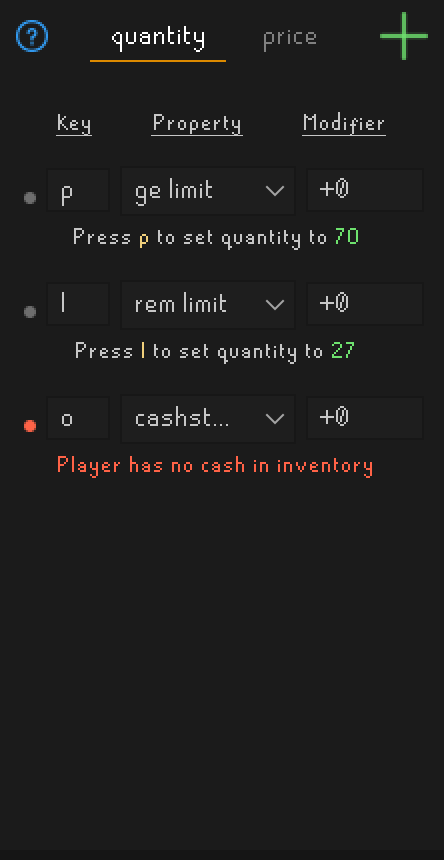
- The price tab is used for Set a price for each item: and the quantity tab for How many do you wish to buy?. The plugin switches tabs by itself on those prompts; for the sell quantity prompt, select the quantity tab yourself.
- Under each option, "Press key to set price to value" previews the result for the highlighted item. A red message explains why an option can't be used right now, for example wiki has no data for this item.
- Click + to add an option. Hover the dot on the left of an option and click the cross to delete it.
- After editing a key or a modifier, press Enter to save it.
- ? opens a short help.
Options are shared by all your accounts.
Properties#
| Property | Value |
|---|---|
| wiki buy / wiki sell | The wiki's latest insta buy / insta sell price |
| insta buy / insta sell | Your last margin check buy / sell price |
| last buy / last sell | Your last buy / sell price |
| ge limit | The item's GE buy limit |
| rem limit | What's left of the GE limit in the current 4-hour window |
| cashstack | How many you can buy with the coins in your inventory, at the price in the offer |
Sell prices are before tax, as you would type them in the GE.
Modifiers#
A modifier is +, - or * followed by a number: +0 uses the value as is, -1 undercuts by one coin,
+10 adds 10, *0.5 halves it (results are rounded). Results can't be negative or above the GE's maximum.
Default options#
| Key | Price | Quantity |
|---|---|---|
n | wiki sell | |
j | wiki buy | |
p | insta buy | ge limit |
l | insta sell | rem limit |
o | last buy | cashstack |
u | last sell |
If you deleted every option, a button under the list adds the defaults back.
Chat shortcuts#
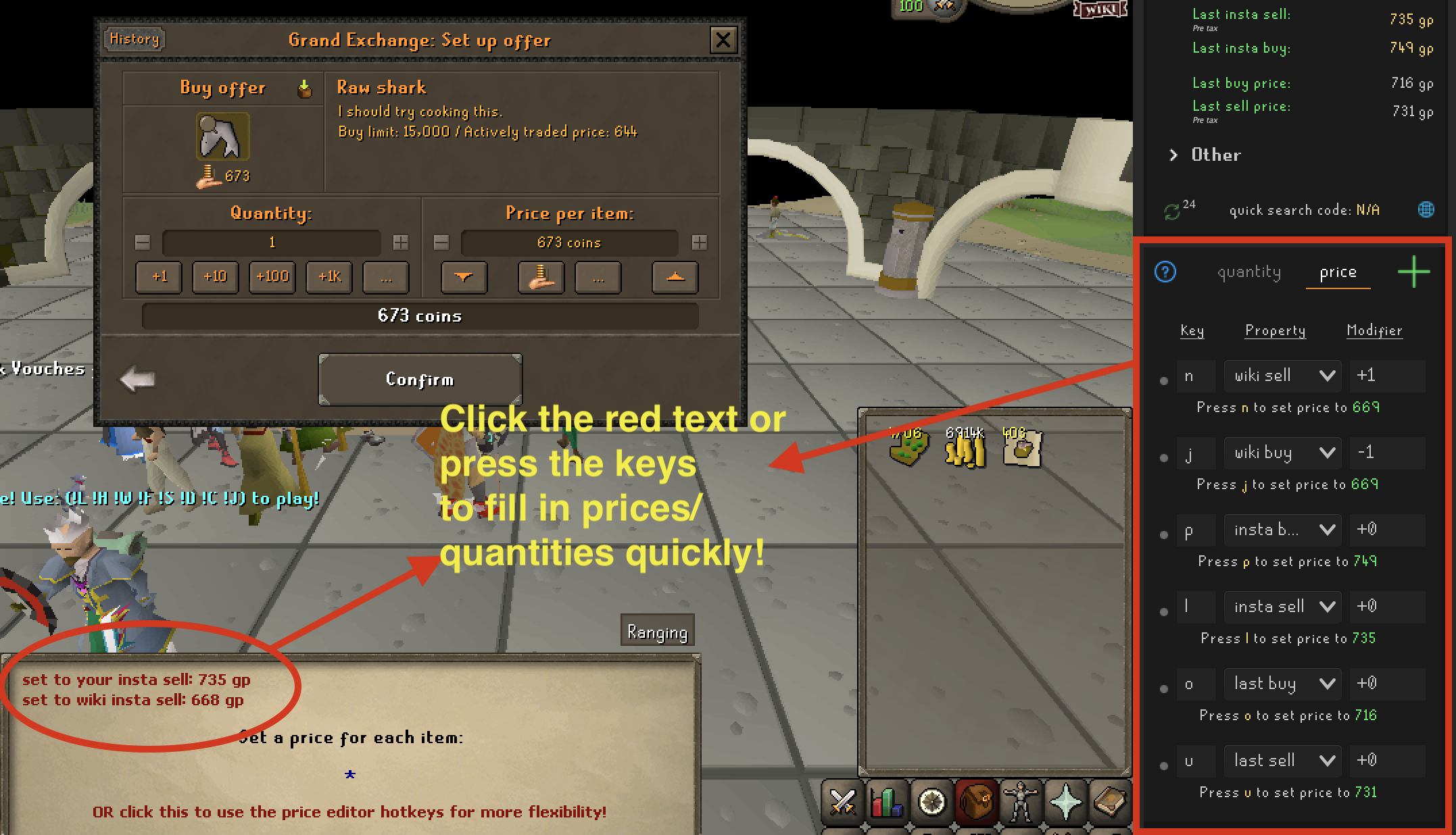
The GE's price and quantity prompts also get clickable lines in the chatbox:
- quantity prompt: set to remaining GE limit;
- buy price prompt: set to your insta sell and set to wiki insta sell;
- sell price prompt: set to your insta buy and set to wiki insta buy;
- OR click this to use the price editor hotkeys for more flexibility! opens a picture of the offer editor.
Offer page chart#
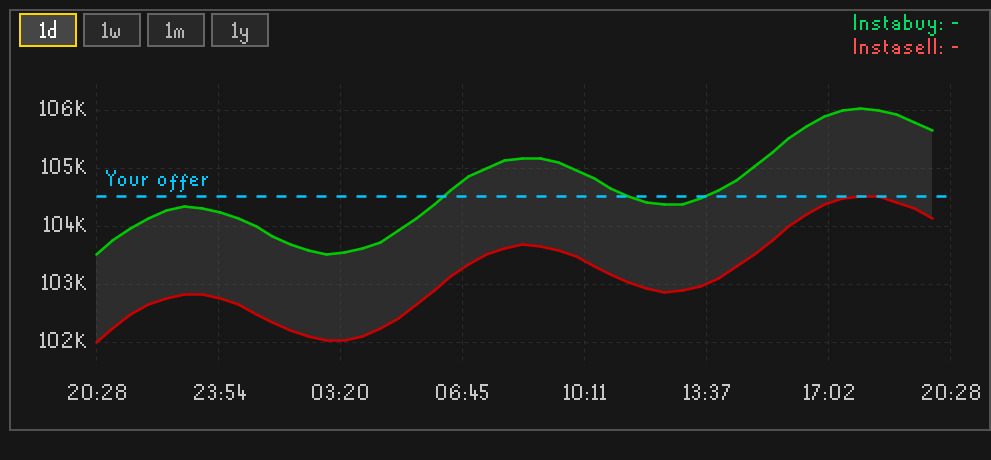
On the Set up offer and Offer status screens, a chart of the item's wiki price history covers the chatbox: green is the insta buy price, red the insta sell price, and the dashed line your offer's price.
- 1d, 1w, 1m and 1y change the range. The default range is the Time range in Settings; a change there is used after RuneLite restarts.
- Hover the chart to read the prices at that time in the top right corner.
- While setting up an offer, click a point to pick its price. The Enter price button is highlighted, and the next price prompt is filled with that price.
- If the prices can't be loaded, click Retry.
The chart hides while a number prompt or the item search is open. Turn it off with Offer page charts in Settings.
Quick search codes#
Every favorite item has a quick search code, 1 by default. Type a code in the GE item search to list all
your favorites that have that code, then pick one. Use different codes to make groups, for example 1 for
items you buy every day and 2 for slow overnight flips.
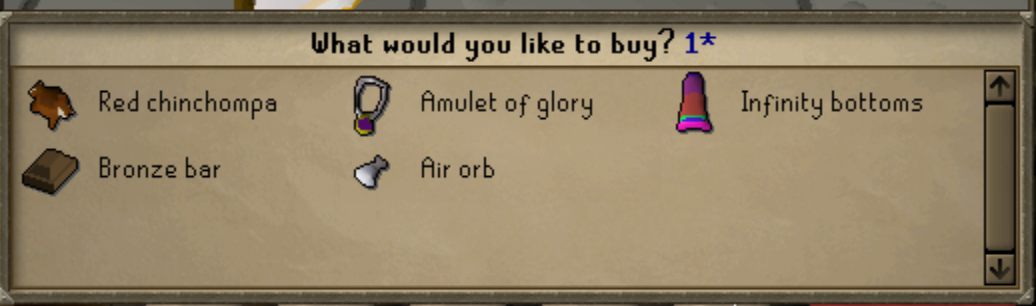
To change an item's code, click quick search code at the bottom of its card in the flipping tab, type the code and press Enter. Only favorites of the account you are logged into are listed.